7 Deadly Markdown Sins: Common Mistakes That Ruin Your Documentation (And How to Fix Them)
Markdown is deceptively simple. You learn the basics in 5 minutes: asterisks for bold, hashes for headers. You think, "I've got this." You start writing.
But simplicity is a double-edged sword. Because there is no compiler screaming at you when you make a mistake (unlike C++ or Rust), bad habits creep in silently. You write sloppy lists. You skip headers. You misuse code blocks.
I have reviewed thousands of Pull Requests across open-source repositories. I see the same formatting errors over and over again. These aren't just aesthetic nitpicks; they break accessibility, confuse parsers, and make your documentation look amateur to anyone who knows better.
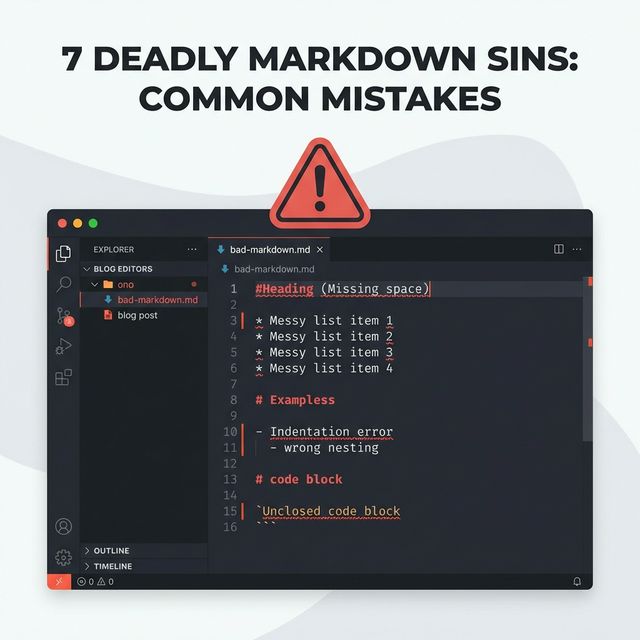
In this guide, we are going to look at the 7 Deadly Sins of Markdown. These are the mistakes that scream "Junior Developer." We will look at why they happen, why they are bad, and how to fix them permanently.
Sin #1: The Header Hierarchy Violation
This is the most common offense. It looks like this:
# Main Title
### Sub-section (I like this size better)
#### Sub-sub-section
The Mistake: Skipping from H1 to H3 because you think H2 looks "too big" in your previewer.
Why it's bad:
- Accessibility: Screen readers use headers to navigate. Skipping a level is like removing a rung from a ladder. The user falls.
- SEO: Google's crawlers use the header outline to understand the semantic structure of your page. A broken outline signals low-quality content.
- TOC Generation: If you use a tool to auto-generate a Table of Contents, it will be indented incorrectly.
The Fix: Always use H1 -> H2 -> H3. If you don't like the font size, change the CSS, don't change the HTML.
Sin #2: The Indentation Limbo
Nesting lists is harder than it looks.
- Item 1
 - Item 2 (Wait, is this nested?)
   - Item 3 (Maybe?)
The Mistake: Using random indentation (1 space, 2 spaces) to nest list items.
Why it's bad: Standard Markdown requires 4 spaces (or 1 tab) for nesting. Some tolerant parsers (like GitHub) might accept 2 spaces, but others (like Python-Markdown) will treat it as a separate list or just flat text. Your documentation becomes fragile.
The Fix: Configure your editor to show whitespace characters. Always use 4 spaces or a hard tab. Be consistent.
Sin #3: The Lazy Link
We've all seen this:
"Click [here](https://google.com) to search."
The Mistake: Using generic text like "here", "this", or "link" as the anchor text.
Why it's bad:
- Accessibility: A screen reader user often scans a list of links. Hearing "Link, Link, Here, Click Here" gives them zero context.
- SEO: Search engines use the anchor text to understand what the linked page is about. "Here" tells Google nothing.
The Fix: Make the link text descriptive. "Search on [Google](https://google.com)." "Read our [API Documentation](...)."
Sin #4: The Inline Code Abuse
Backticks are great for code. But some devs use them for emphasis.
"Please generally `avoid` doing this."
The Mistake: Using code formatting for non-code words just to make them stand out.
Why it's bad: It confuses the reader. When I see a monospace font with a gray background, my brain switches to "Code Mode." I expect it to be a variable, a file path, or a command. When it's just an English verb, it causes a cognitive stumble.
The Fix: Use **bold** or *italics* for emphasis. Use `code` blocks strictly for technical terms (filenames, variables, endpoints).
Sin #5: The Absolute URL Trap
In a project documentation site:
See the [Install Guide](https://github.com/my-org/my-repo/blob/main/docs/install.md)
The Mistake: Hardcoding the full domain.
Why it's bad:
- Forking: If I fork your repo, that link still points to your repo. My users get sent away from my fork.
- Versioning: If you change the branch name from
maintomaster(or vice versa), every link breaks. - Local Dev: I can't click that link in VS Code and have it open the file. It opens the browser.
The Fix: Use relative links. [Install Guide](./install.md).
Sin #6: The Unlabeled Fence
```
const x = 1;
```
The Mistake: Using triple backticks without specifying the language.
Why it's bad: No syntax highlighting. It looks like a blob of gray text. It makes complex code much harder to read.
The Fix: Always add the language. js, python, bash, json. Even text is better than nothing.
Sin #7: The Double Line Break
Markdown ignores single line breaks. This confuses beginners.
Line 1
Line 2
Renders as: "Line 1 Line 2".
The Mistake: Expecting the output to match the input exactly.
The Fix: To create a new paragraph, hit Enter twice (leave a blank line). To create a soft line break (<br>), end the line with two spaces (invisible, dangerous) or just use a backslash at the end (non-standard but supported by some). The best practice is simply to use new paragraphs.
Part 8: Advanced Linting Strategies
So, you know the sins. How do you prevent them? You automate the penance.
1. Markdownlint
This is the gold standard linter. You can run it as a CLI tool, a VS Code extension, or a GitHub Action. It has rules for everything: header incrementing, trailing spaces, no hard tabs, etc.
If you add a .markdownlint.json file to your repo, you can enforce these rules for your entire team.
2. Prettier
Prettier is an opinionated code formatter. It supports Markdown! It will automatically wrap your lines, fix your list indentation, and standardize your bold/italic syntax (stars vs underscores).
Run npx prettier --write "**/*.md" and watch your docs transform into a consistent masterpiece.
3. Vale (Prose Linting)
Vale goes deeper. It checks English. It checks style. "Don't use 'e.g.', use 'for example'." "Don't use passive voice." Companies like Google, GitLab, and Stripe use Vale to ensure their documentation voice is consistent.
Part 9: Accessibility is Not Optional
When you write bad Markdown, you aren't just annoying your colleagues; you are excluding people.
A blind developer using a screen reader relies on valid semantic HTML. If you use bold text as a header (**My Title**) instead of a real header (# My Title), they can't jump to that section.
If you use an image without alt text (), they have no idea what it is. Always describe the image: .
Part 10: How to Future-Proof Your Docs
Markdown is great, but it's not magic. If you don't maintain it, it rots. Links break. Screenshots get old. Code samples stop working.
Here is my strategy for keeping documentation alive for 5+ years:
1. The "Code Rot" Monitor
If you have code blocks in your docs, they should be tested. Tools like TestSnippets or Docusaurus allow you to actually run the code in your markdown files as part of your CI pipeline. If your API changes and the example code breaks, the build fails. This guarantees that your documentation is always accurate.
2. The "Link Rot" Checker
We mentioned this before, but strictly enforcing a no-broken-links policy is crucial. Use a tool like markdown-link-check in your GitHub Actions. It will ping every URL in your docs. If a 3rd party blog post executes a 404, you'll know about it before your users do.
3. Screenshot Discipline
Avoid screenshots if possible. They are hard to maintain, hard to search, and inaccessible to blind users. If you must use them, use an automated tool (like Puppeteer or Playwright) to generate them during the build process. That way, when the UI changes, you just re-run the script and all your screenshots update automatically.
Part 11: Comprehensive FAQ
Here are the most common questions I get asked about Markdown formatting.
Q1: Should I use tabs or spaces?
Answer: Spaces. Always spaces. 2 spaces for indentation in most YAML/frontmatter, 4 spaces for listing nesting. Tabs render differently in different editors (some are 4 chars wide, some 8), which destroys your ASCII art tables and nested lists. Configure your editor to "Insert Spaces when pressing Tab."
Q2: How do I center text in Markdown?
Answer: You can't. Not in pure Markdown. Markdown is concerned with structure (left-aligned by default), not presentation. If you absolutely must center something, you have to use raw HTML: <div align="center">Text</div>. But generally, if you are fighting the alignment, you should probably be writing CSS, not Markdown.
Q3: Why doesn't my table render on GitHub?
Answer: Check the spaces. You need a space after the pipe character | and usually a blank line before the table starts. Also, ensure your header row separator `|---|` has at least 3 dashes. Some parsers are strict.
Q4: Can I change the color of my text?
Answer: No. Markdown has no concept of color. Again, use HTML/CSS: <span style="color:red">Text</span>. But be warned: many Markdown renderers (like on GitHub or Reddit) strip out inline styles for security reasons.
Q5: How do I resize images?
Answer: Standard Markdown  does not support resizing. You have 3 options:
1. Resize the actual image file before uploading.
2. Use HTML: <img src="url" width="500" />.
3. Use a platform-specific extension (like syntax in Obsidian or Hugo).
Q6: What is the difference between CommonMark and GFM?
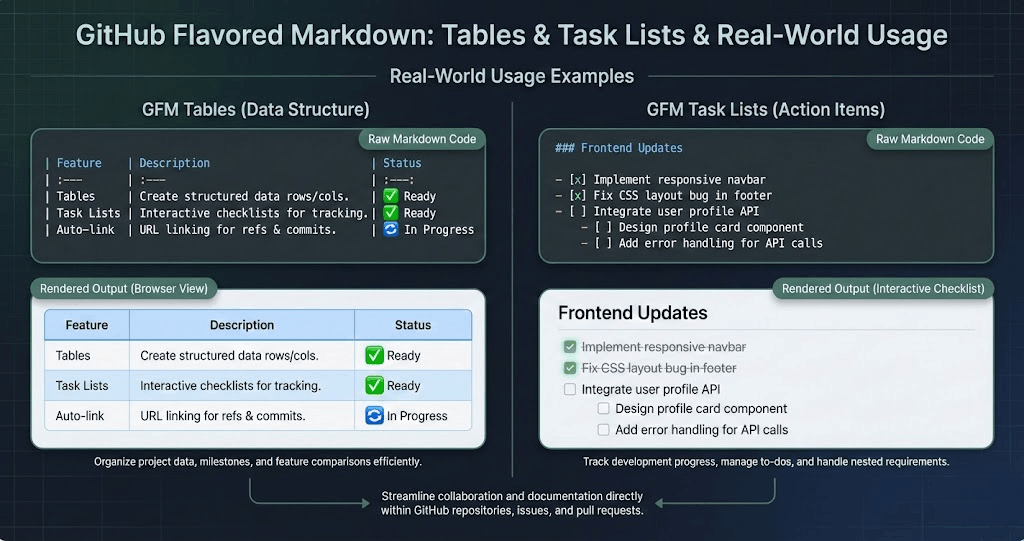
Answer: CommonMark is the "strict standard" specification. It is very basic. GFM (GitHub Flavored Markdown) is a superset that adds Tables, Task Lists, Strikethrough, and Auto-linking. 99% of developers use GFM effectively.
Q7: How do I escape characters?
Answer: If you want to type a literal asterisk without making text italic, put a backslash before it: \*not italic\*. This works for almost any special character: \#, \[, \`.
Q8: Can I write comments in Markdown?
Answer: Yes, use standard HTML comments: <!-- This is a comment -->. The renderer will hide them from the final output, but they will be visible to anyone viewing the source.
Q9: Why does my list break when I put an image in it?
Answer: Indentation. If you want an image to be "inside" a list item, you must indent the image reference by 4 spaces (or 1 tab) so it aligns with the text of the list item. If you don't indent it, it resets the list.
Q10: Is Markdown good for legal contracts?
Answer: Surprisingly, yes. "Smart Contracts" or "Prose Contracts" in Markdown are gaining traction because they are version-controllable. You can `git diff` a contract to see exactly what clause changed. However, for formatting specific page numbers and signature lines, you'll need a robust PDF generation pipeline (CSS Paged Media).
Conclusion: Use a Linter
You wouldn't write Javascript without ESLint. You shouldn't write Markdown without a linter.
Tools like markdownlint (available as a VS Code extension) catch 90% of these errors automatically. They squiggle red lines under your bad headers and your weird lists. They teach you best practices while you type. If you are working on API docs specifically, check out our practical guide to API documentation with Markdown for endpoint-specific formatting tips.
Documentation is the face of your code. Wash it. Comb it. Make it presentable.