How to Structure Large Documentation Projects Using Markdown (Complete Guide)
Documentation projects, like software documentation and technical manuals, can get really complicated and hard to manage. If you do not have a plan, it becomes tough to find your way around the documentation, make updates, and keep it working properly.
People like to use Markdown for documentation because it is easy to use and works with different systems. Markdown is also simple to move and works with version control. A lot of documentation systems such as GitHub Docs, GitLab, MkDocs, Docusaurus, and Hugo use Markdown a lot.
In this guide, you will learn how to set up big documentation projects using Markdown. This includes things like how to organize your files, design your navigation, and use version control. You will also learn about tools that can help you keep your documentation projects running smoothly.
Why Markdown is Ideal for Large Documentation Projects
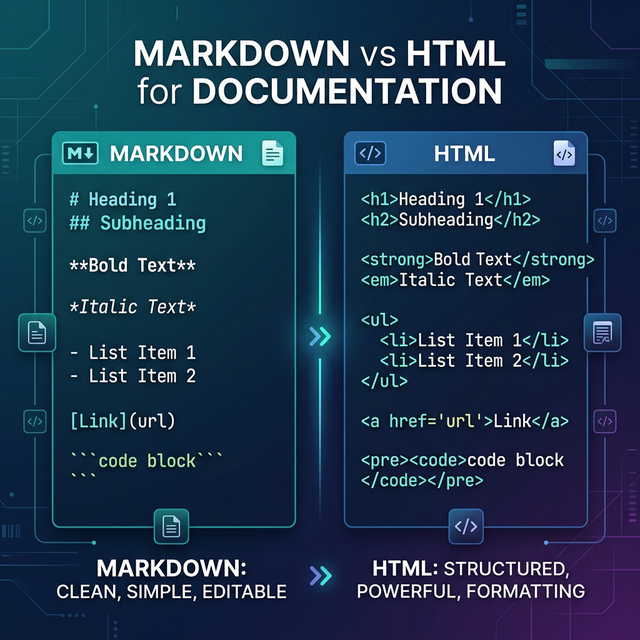
Markdown is a lightweight markup language that allows writers to format text using simple syntax. Instead of complicated HTML tags, Markdown uses readable formatting such as:
# Heading— for headings**Bold text**— for bold emphasis- Item— for bullet lists[Links](url)— for hyperlinks
This simplicity makes Markdown an excellent choice for documentation projects of any scale.
Key Benefits of Markdown for Documentation
1. Easy to Write and Read
Markdown is readable without rendering. Writers and developers can easily edit documentation without learning complex formatting. If you are just getting started, our guide to mastering Markdown basics covers everything you need to know.
2. Version Control Friendly
Markdown files work seamlessly with Git. Teams can track changes, collaborate, and maintain version history easily. This is one of the reasons developers love Markdown — it fits naturally into their existing workflows.
3. Platform Independent
Markdown can be converted into multiple output formats:
- HTML websites
- PDF documents
- Documentation portals
- Static sites
- Presentation slides
This flexibility allows teams to publish documentation in any format they need. If you need polished PDFs, tools like Toflio make it easy to design print-ready Markdown documents.
4. Perfect for Developer Workflows
Because documentation is stored as text files, it integrates well with developer tools such as GitHub, GitLab, and Bitbucket. This aligns perfectly with the docs-as-code approach that modern teams adopt.
Understanding the Challenges of Large Documentation Projects
Before structuring documentation, it is essential to understand the challenges large projects face.
1. Content Organization
Large documentation can include hundreds or thousands of pages. Without proper structure, users struggle to find the information they need. One of the most common Markdown mistakes is failing to organize content into logical sections and files.
2. Scalability
Documentation grows over time as new features are added and existing ones are updated. A poor initial structure makes expansion difficult and leads to content sprawl.
3. Collaboration
Large teams contribute to documentation simultaneously. Clear standards and conventions are required to maintain consistency across all contributors.
4. Navigation
Readers must quickly locate the content they are looking for. Without well-designed navigation, even the best-written documentation becomes frustrating to use.
Core Principles of Structured Markdown Documentation
Successful documentation projects follow a set of core principles that keep content organized and maintainable.
1. Modular Documentation
Each topic should live in its own Markdown file. Instead of packing everything into one massive document, break it into focused modules:
Bad example: One giant documentation.md file containing everything.
Good example: Separate, focused files:
installation.md
configuration.md
troubleshooting.md
faq.md
This improves both readability and maintenance. Each file can be independently updated without risking changes to unrelated content.
2. Logical Folder Hierarchy
Folders help organize documentation into logical groups. Here is an example of a well-structured documentation project:
docs/
│
├── getting-started/
│   ├── installation.md
│   ├── quick-start.md
│   └── requirements.md
│
├── guides/
│   ├── authentication.md
│   ├── deployment.md
│   └── integrations.md
│
├── api/
│   ├── endpoints.md
│   ├── authentication.md
│   └── examples.md
│
└── troubleshooting/
    ├── common-errors.md
    └── debugging.md
This approach provides:
- Easy navigation through logical grouping
- Clear separation of concerns
- A scalable structure that can grow with the project
Recommended Folder Structure for Large Documentation
A well-designed structure makes documentation scalable from day one. Here is a recommended layout that works for most large projects:
docs/
│
├── README.md
├── introduction.md
│
├── getting-started/
│   ├── installation.md
│   ├── setup.md
│   └── quickstart.md
│
├── tutorials/
│   ├── basic-tutorial.md
│   └── advanced-tutorial.md
│
├── guides/
│   ├── configuration.md
│   ├── deployment.md
│   └── optimization.md
│
├── reference/
│   ├── api-reference.md
│   ├── cli-reference.md
│   └── config-options.md
│
├── troubleshooting/
│   ├── common-errors.md
│   └── debugging.md
│
└── faq.md
This structure separates content into distinct categories that serve different user needs — from beginners following tutorials to experienced users looking up reference material.
Designing Clear Navigation
Good navigation is essential for documentation usability. Without it, even well-organized content becomes hard to discover.
1. Table of Contents
Each major document should contain a table of contents (TOC) at the top. This helps readers quickly scan and jump to the section they need.
Example in Markdown:
## Table of Contents

- [Installation](#installation)
- [Configuration](#configuration)
- [Deployment](#deployment)
- [Troubleshooting](#troubleshooting)
Many documentation tools generate a TOC automatically based on your heading structure.
2. Sidebar Navigation
Documentation websites typically use sidebar navigation to provide an always-visible outline. Here is how a sidebar might be structured:
Getting Started
  ├── Installation
  ├── Setup
  └── Quick Start
Guides
  ├── Configuration
  └── Deployment
Reference
  ├── API
  └── CLI
Tools like Docusaurus and MkDocs support automatic sidebar generation from your folder structure.
3. Internal Linking
Link between documentation pages to improve navigation and discoverability. Internal links help readers explore related topics without leaving the documentation flow.
Example:
For installation instructions, see the [Installation Guide](../getting-started/installation.md).

Related: [Configuration Options](../reference/config-options.md)
Benefits of internal linking:
- Improves user experience by guiding readers through related content
- Helps readers discover topics they would not have found otherwise
- Improves SEO by building a strong internal link structure
Writing Consistent Markdown Files
Consistency improves documentation quality and makes content easier to maintain across a large team.
Standard Page Template
Every documentation page should follow a consistent structure. Here is a recommended template:
# Page Title

## Overview

A brief explanation of the topic.

## Prerequisites

Requirements before starting.

## Step-by-Step Instructions

### Step 1: First Action

Detailed explanation.

### Step 2: Next Action

Detailed explanation.

## Examples

Code examples and usage demonstrations.

## Troubleshooting

Common issues and their solutions.

## Related Resources

Links to related documentation pages.
This structure makes documentation predictable and easier to read. Readers learn the pattern and can quickly find what they need on any page.
Markdown Best Practices for Documentation
1. Use Clear Headings
Headings structure your content and create a scannable outline. Always follow a proper hierarchy:
# Main Title (H1)

## Section (H2)

### Subsection (H3)
Avoid skipping heading levels — going from H1 directly to H3 breaks the logical flow and confuses both readers and search engines.
2. Use Lists for Readability
Lists break up dense text blocks and make information scannable:
Benefits include:

- Faster setup time
- Better team collaboration
- Improved scalability
- Easier maintenance
3. Include Code Blocks
Technical documentation requires clear code examples. Always specify the language for proper syntax highlighting:
npm install project-nameprint("Hello, World!")For more on how Markdown handles code blocks and syntax highlighting, see our guide on GitHub Flavored Markdown.
4. Add Images When Needed
Visuals improve comprehension, especially for UI-related documentation or complex workflows:
Always use descriptive alt text for accessibility.
Version Control for Documentation
Large documentation projects should use Git for version control. This is fundamental to the docs-as-code approach that modern teams use.
Benefits include:
- Change tracking — see exactly what changed, when, and by whom
- Collaboration — multiple contributors can work simultaneously
- Branching — work on new documentation sections without affecting the live version
- Rollback capability — revert to any previous version instantly
Typical Documentation Workflow
- Create a feature branch for your documentation changes
- Update the relevant Markdown files
- Submit a pull request for review
- Review and iterate on feedback
- Merge to the main branch and deploy
This workflow integrates documentation into the same development process used for code, ensuring docs stay current.
Using Static Site Generators
Markdown files often power documentation websites through static site generators. These tools transform your folder of Markdown files into a fast, searchable, and navigable website.
1. MkDocs
MkDocs is widely used for project documentation. Its key features include:
- Automatic navigation generation
- Full Markdown support
- Customizable themes (including the popular Material theme)
- Built-in search functionality
Configuration is straightforward through a single mkdocs.yml file alongside your docs/ folder.
2. Docusaurus
Developed by Meta, Docusaurus is a powerful documentation platform with:
- React-based architecture for custom components
- Built-in versioned documentation support
- Algolia search integration
- MDX support for interactive content
3. Hugo
Hugo is one of the fastest static site generators available. It is great for:
- Large documentation sites that need fast build times
- Developer portals with thousands of pages
- Teams that prefer Go-based tooling
4. Jekyll
Jekyll remains popular for GitHub Pages documentation. It is a solid choice for teams already hosting on GitHub who want seamless integration.
Managing Large Documentation Teams
Large documentation projects often involve many contributors across different teams. Clear processes keep everyone aligned.
1. Documentation Guidelines
Create a style guide that defines conventions for your team:
- Writing tone and voice
- Formatting standards
- File naming conventions
- Folder structure rules
- Image and media guidelines
Store your style guide as a Markdown file in the documentation repository itself, for example docs/style-guide.md. If your team is new to technical writing with Markdown, our guide for technical writers is a great starting point.
2. Review Process
Use pull requests for all documentation changes. This provides:
- Quality control through peer review
- Consistency enforcement
- Error prevention before publication
- An audit trail of changes
3. Assign Content Ownership
Each section of the documentation should have a clear owner responsible for keeping it accurate and up to date:
| Documentation Section | Owner |
|---|---|
| API Documentation | Backend Team |
| User Guides | Product Team |
| Troubleshooting | Support Team |
| Architecture Docs | Engineering Leads |
Maintaining Documentation Quality
Documentation should be regularly audited and updated to maintain its value over time.
Regular Documentation Audits
Schedule periodic reviews to check for:
- Outdated information that no longer reflects the current product
- Broken links to internal or external resources
- Incorrect code examples or commands
- Missing documentation for new features
Automating Quality Checks
Automation tools help maintain documentation quality at scale:
- markdown-link-check — scans for broken links across all documentation files
- lychee — fast link checker that works in CI/CD pipelines
- Vale — prose linter that enforces your style guide automatically
These tools can be integrated into your CI/CD pipeline to catch issues before they reach production.
File Naming Best Practices
Good file names improve clarity and make it easier to locate content in large projects.
Recommended naming patterns:
installation-guide.mdapi-authentication.mddatabase-setup.mdtroubleshooting-errors.md
Avoid vague names like:
doc1.mdpage.mdinfo.mdnotes.md
Use lowercase letters with hyphens as separators. This keeps file names URL-friendly and consistent across operating systems.
Documentation Versioning
Software documentation often requires versioned content so users can access documentation that matches their installed version.
Example folder structure for versioned docs:
docs/
├── v1/
│   ├── getting-started.md
│   └── api-reference.md
├── v2/
│   ├── getting-started.md
│   └── api-reference.md
└── latest/
    ├── getting-started.md
    └── api-reference.md
Versioning allows users to access documentation for specific releases while always having the latest version available. Tools like Docusaurus support built-in versioning that handles this automatically.
Search Optimization for Documentation
SEO matters for documentation — users often discover documentation through search engines rather than direct navigation.
1. Use Keyword-Friendly Titles
Descriptive titles help search engines understand your content:
Good: How to Deploy a Node.js Application
Avoid: Deployment Guide
2. Clear Heading Structure
Search engines rely on headings to understand content hierarchy. Use them as a content outline:
- H1 — Main topic (one per page)
- H2 — Major sections
- H3 — Subsections within major sections
This is one area where understanding the differences between Markdown and HTML can help you make better decisions about your content structure.
3. Internal Linking Strategy
Internal links help search engines crawl and index your documentation effectively. Link related pages together to create a strong content network that improves both user experience and SEO performance.
Common Mistakes in Large Markdown Documentation
Avoid these common pitfalls that can undermine even well-intentioned documentation projects:
1. Giant Markdown Files
Massive single files become difficult to maintain, slow to load, and hard to navigate. Break them into focused, modular documents.
2. Poor Navigation
Users should never feel lost in your documentation. Always include:
- Sidebar navigation for browsing
- Table of contents for long pages
- Internal links between related pages
- Breadcrumbs showing the current location
3. Inconsistent Formatting
Inconsistent use of headings, lists, and code blocks makes documentation feel unprofessional. Use a style guide and automated linting to maintain consistency.
4. No Version Control
Documentation should always be stored in Git. Without version control, you lose the ability to track changes, collaborate effectively, and roll back mistakes.
Example Real-World Documentation Structure
Here is a real-world example that demonstrates how a SaaS product might structure its documentation:
docs/
│
├── introduction.md
├── getting-started/
│   ├── create-account.md
│   ├── installation.md
│   └── quickstart.md
│
├── features/
│   ├── dashboards.md
│   ├── analytics.md
│   └── integrations.md
│
├── api/
│   ├── authentication.md
│   ├── endpoints.md
│   └── rate-limits.md
│
├── guides/
│   ├── automation.md
│   └── workflows.md
│
└── troubleshooting/
    ├── common-errors.md
    └── support.md
This structure supports both beginners exploring the product and advanced users looking up specific API documentation.
Future Trends in Documentation
Documentation is evolving rapidly. Some important trends shaping the future include:
- AI-assisted documentation — automated generation and updating of documentation
- Interactive documentation — embedded live examples and sandboxes
- Live code examples — runnable code blocks directly in documentation pages
- Documentation as code — treating docs with the same rigor as source code
- Automated API documentation — generating API docs directly from code annotations
Markdown will remain central to all of these trends because of its simplicity, flexibility, and universal support across tools and platforms.
Final Thoughts
Managing big documentation projects with Markdown needs planning, consistent organization, and workflows that can grow with your project.
Teams can keep knowledge bases up to date by using modular documentation, logical folder structures, clear navigation, version control, and the right documentation tools.
Markdown is an excellent choice for managing documentation at scale because it is simple, flexible, and works well with modern development workflows. By following the practices outlined in this guide, you can create clear, maintainable, and scalable documentation systems that help users find what they need quickly — and make life easier for documentation teams.
Ready to get started? If you need to convert your Markdown documentation into polished PDFs for distribution, try Toflio's Markdown to PDF converter — it is the fastest way to go from plain text to professional documents.