Mastering Markdown: The Ultimate Developer's Guide to Documentation (2026 Edition)
We need to talk about documentation. I know, I know—you'd rather be writing code. You'd rather be debugging a race condition in Redis than writing a README file. But here is the hard truth that took me ten years of software engineering to learn: Code that isn't documented is code that doesn't exist.
If nobody knows how to use your API, it's useless. If nobody knows how to set up your dev environment, your project dies when you leave the company. Communication is the bottleneck of every engineering team.
For decades, we solved this with heavy tools. We wrote specifications in Microsoft Word (formatted with chaotic styles like "Heading 1 Final Final v2"). We wrote wikis in complex XML formats. We struggled with LaTeX just to get a bold font.
And then, something wonderful happened. A guy named John Gruber created Markdown.
In this comprehensive guide, we are going to go from "I know how to make text bold" to "I can architect an entire documentation site using Markdown." We will cover the basics, the advanced GitHub Flavored features, and the ecosystem of tools that has sprung up around it.
Part 1: The Philosophy of Plain Text
Markdown wasn't just a new file format. It was a rebellion. It was a statement that writing should be easy. It stripped away the toolbars, the font pickers, and the "paragraph spacing" dialogs. It left us with just the text.
The beauty of Markdown is that it is readable as-is. If I send you a raw Markdown file, you can read it without rendering it.
- You can
grepit in the terminal. - You can
diffit in Git to see exactly what changed. - You can open it in Notepad, Vim, Emacs, or VS Code.
This "tool agnosticism" is why developers love it. We aren't locked into a proprietary vendor. We own our words.
Part 2: The Basics (A Quick Refresher)
Most developers pick up the basics in five minutes. You probably know that asterisks make things italic and double asterisks make things bold. But let's look closer at the nuances that separate "messy" Markdown from "professional" documentation.
Headings: The Skeleton of Your Thought
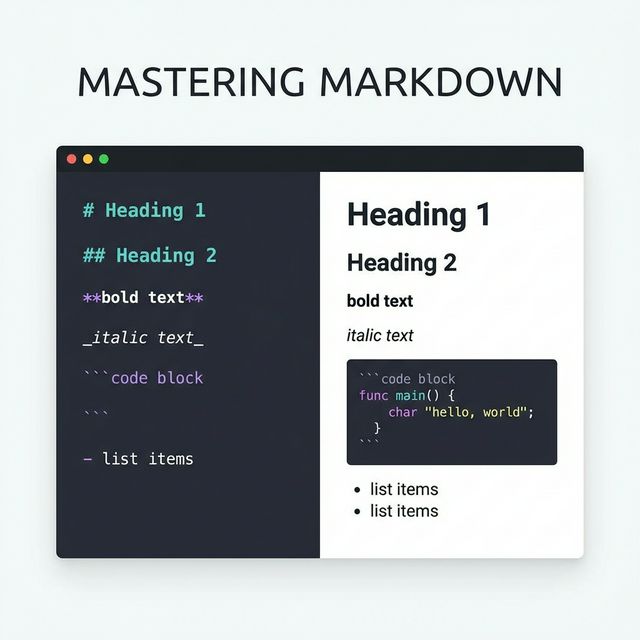
Headings are semantic. They aren't just "big text." When a screen reader sees a # Heading 1, it announces "Main Title." When a search engine crawls your documentation, it uses headings to understand the hierarchy of your content.
One common mistake I see junior devs make is skipping levels for aesthetic reasons. They use ### H3 because they think ## H2 looks "too big."
Don't do this. Use CSS to style the visual size; use Markdown to define the logical structure. Always go H1 -> H2 -> H3. If you skip a level, you break the document outline.
Lists: Chaos Controlled
Lists are the bread and butter of technical writing. Features, steps, requirements—they all belong in lists.
- Unordered Lists: Use
-or*. Ideally, stick to dashes-because asterisks*can sometimes be confused with bold/italic markers if you aren't careful with spacing. - Ordered Lists: Use
1. 2. 3.. Fun fact: You can actually type1. 1. 1.and Markdown will render it as 1, 2, 3 automatically. This is a lifesaver when you need to rearrange steps in the middle of a list and don't want to renumber everything manually.
The real power move is nesting. To nest a list, indent by 4 spaces (or 1 tab). Getting this indentation wrong is why your bullet points sometimes look broken. Consistency is key.
Part 3: The "Github Flavored" Revolution (GFM)
Original Markdown (Standard Markdown) was great, but it was designed for blogs, not code. It lacked features that developers desperately needed, like syntax highlighting and tables.
GitHub stepped in and created GFM (GitHub Flavored Markdown). This is effectively the industry standard today.
Fenced Code Blocks: The Crown Jewel
In the old days, you had to indent every line by 4 spaces to make it code. It was a nightmare to paste code snippets. GFM introduced the "triple backtick" fence.
But the real magic isn't just the block—it's the language identifier. By adding javascript or python after the backticks, you get syntax highlighting.
function hello() {
  console.log("World");
}
This single feature changed documentation forever. Now, reading a README feels like reading code in an IDE. It respects the cognitive load of the reader by coloring keywords and strings.
Pro Tip: Always explicitly state the language. If it's a bash command, use bash or sh. If it is JSON, use json. This helps accessibility tools and ensures correct coloring.
Task Lists and Tables
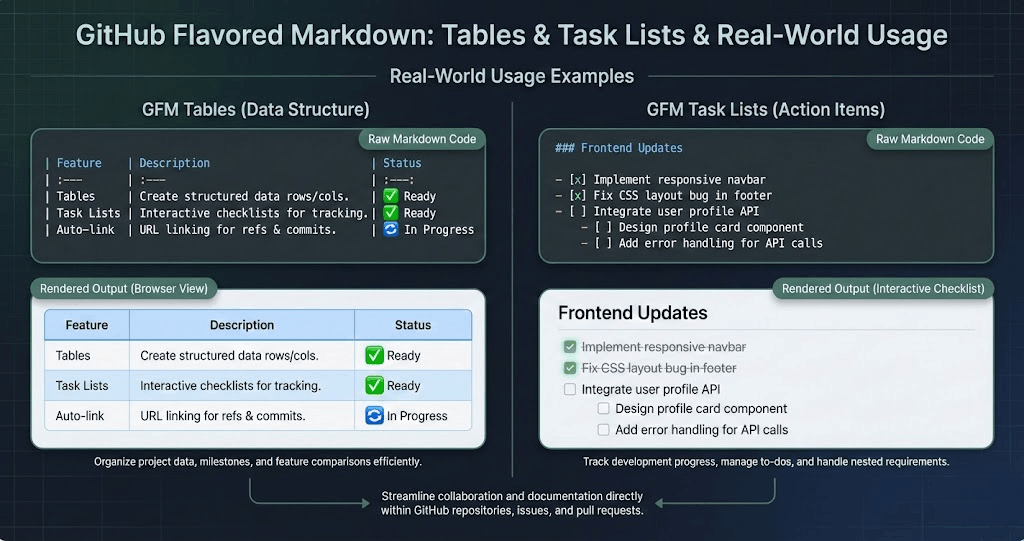
GFM also added Task Lists - [ ] which render as clickable checkboxes on GitHub. This is perfect for "Definition of Done" lists in PRs.
And Tables. Oh, tables. We used to write them in HTML <table> tags. It was awful. Now we use pipes:
| Header | Header |
| --- | --- |
| Cell | Cell |
It's visual. It's clean. It aligns in your editor.
Part 4: Advanced Techniques for Power Users
Now we are getting into the territory that separates the average developer from the "Documentation Lead." These are the features that make your docs feel like a polished product.
1. HTML Re-entry
Here is a secret: Markdown is HTML. If Markdown doesn't support something (like centering an image or opening a link in a new tab), you can just write raw HTML tags inside your Markdown file, and it will work.
For example, if you want a detailed collapsible section (useful for "Troubleshooting" logs that you don't want to clutter the main page), use the <details> and <summary> tags.
<details>
  <summary>Click to see error logs</summary>
  Error: 500 Internal Server Error...
</details>
2. Diagrams as Code (Mermaid.js)
The frontier of Markdown is Diagrams as Code. Historically, if you wanted a flowchart, you drew it in Visio, exported a PNG, and pasted it. If the logic changed, you had to re-draw it.
With tools like Mermaid.js (supported by GitHub!), you define diagrams in text:
graph TD;
    A[Client] -->|Request| B(Server);
    B -->|Query| C[(Database)];
This renders a flowchart. It is version-controlled. It is diff-able. It is the future.
Part 5: Common Pitfalls to Avoid
After reviewing thousands of READMEs, I see the same mistakes over and over.
- The "Wall of Text": People forget to use headers. They write 500 lines of prose. No one reads that. Break it up. Use bullet points. Use bold text for emphasis.
- Broken Links: In a multi-file Markdown project, using absolute links (
https://github.com/me/repo/blob/main/docs/api.md) is a trap. If you fork the repo, the link breaks. Always use relative links (./docs/api.md). - Inconsistent Formatting: One file uses
*for lists, another uses-. One uses# Header, another usesHeader ======. Use a linter likemarkdownlintto enforce consistency automatically.
Part 6: From Text to Product (PDFs and Microsites)
Writing the Markdown is step one. But how do you deliver it? A raw text file isn't always the best deliverable for a client or a manager.
Static Site Generators (SSG)
Tools like Docusaurus, VitePress, and Hugo take your folder of Markdown files and compile them into a full-blown website. They add search, navigation sidebars, dark mode, and SEO tags. If you are building documentation for a library, this is the gold standard. For API-specific documentation, our guide to writing API docs with Markdown covers the exact structure and best practices you need.
PDF Conversion
Sometimes you need a snapshot. A contract. A report. You can't just send a URL. You need a PDF.
This is notoriously hard. "Print to PDF" from a browser often breaks code blocks in half across pages or leaves ugly URLs in the footer.
That's why tools like Text To PDF Pro exist. We specialize in taking that raw Markdown structure and applying "Print CSS" to it. We handle the edge cases—like ensuring a heading never appears at the bottom of a page without its following paragraph (widow/orphan control). We ensure high-resolution font rendering so your text looks crisp on a retina iPad.
Conclusion: Respect the Reader
Documentation is empathy. It is you, in the past, sending a message to you (or your colleague) in the future.
When you write clean, structured Markdown, you are saying: "I value your time. I want you to understand this quickly."
It doesn't take much effort to move from "sloppy notes" to "masterful documentation." Use proper headers. Use syntax highlighting. Process your thoughts into lists. And when you need to share it with the world, convert it to a format that shines.
Go forth and document.